Put your shared to-do list on the lock screen (iPhone) or home screen (Android)
TwoDo is built to be read and ticked off from a widget, without opening the app. Here is how to add it on each platform, and where to look when it doesn't show up.
Before you start
- Open the app and set up a list with "Create a list" or "Join your partner's list". There is no sign-up.
- Add a task or two — an empty list has nothing to show.
- The widget shows only unfinished tasks. Completed ones disappear from it automatically.
iPhone — Home Screen widget
- Long-press an empty spot on the Home Screen until the icons jiggle.
- Tap "+" in the top-left and search for "TwoDo".
- Pick a size, tap "Add Widget", then "Done".
- With more than one list, long-press the widget and tap "Edit Widget". The list name appears in blue on the right — tap that to choose.
On the Home Screen widget you can tap the circle to complete a task (iOS 17+). Add several widgets and point each at a different list.
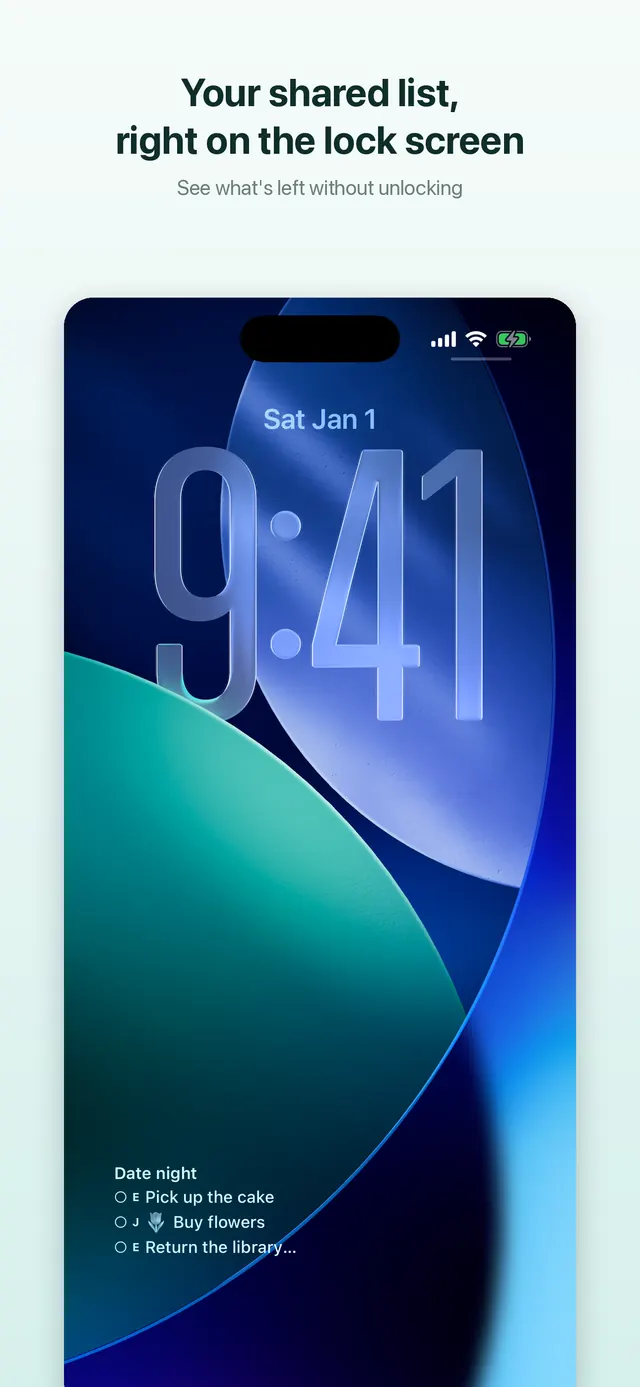
iPhone — Lock Screen widget (iOS 16+)
- Long-press the Lock Screen and tap "Customize" (Face ID or passcode needed).
- Choose "Lock Screen".
- Tap the widget area below (or above) the clock.
- Add "TwoDo" and tap "Done".
TwoDo offers three Lock Screen widgets — circular (count left), inline (next task), and rectangular (list). What's left is visible without unlocking. A Live Activity that shows several to-dos large on the Lock Screen is available with Pro.
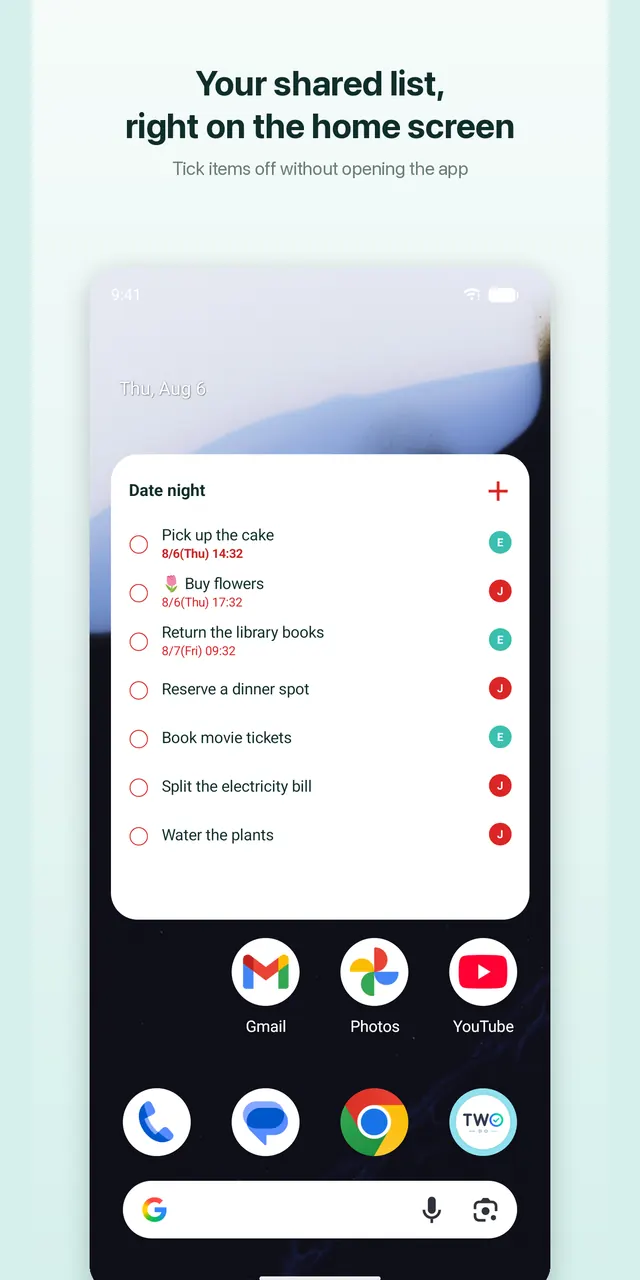
Android (Galaxy) — home screen widget
- Long-press an empty spot on your home screen for a second or two.
- Tap "Widgets".
- Scroll to "TwoDo" (or search for it at the top).
- Long-press the TwoDo widget and drag it where you want.
- Long-press it again to show the resize handles; make it taller to show more tasks.
With more than one list you'll be asked which list to show when you place it. To switch later, long-press the widget and tap the pencil icon — no need to place it again.
Galaxy — lock screen
One UI 8: Settings → "Lock screen and AOD" (or "Lock screen") → "Widgets" → turn on or add TwoDo → on the lock screen, tap the widget area below the clock to place it. On some versions you long-press the lock screen and use "Edit".
If TwoDo isn't in the list, or its content doesn't render — Good Lock (LockStar): Samsung's built-in lock screen often won't draw third-party widget content. Open the Galaxy Store (not the Play Store), install "Good Lock", install the "LockStar" module inside it, then add the TwoDo widget in LockStar's lock-screen editor and resize it with the corner handles. This is the most reliable way to see the list itself.
Android lock screen widgets only exist on Samsung One UI. On other phones, use the home screen widget — it works on every device.
A see-through background
Your launcher's own "widget transparency" fades the whole widget, text included — leave it at 0. Instead, open the ⋮ menu in the app → "Theme" and drag "Widget background" to the transparency you want. Only the background fades; the text stays sharp. If a dark wallpaper swallows the text, raise "Text shade". The preview above the sliders shows the result immediately.
Troubleshooting
- The widget is empty → Open the app and check for unfinished tasks — the widget shows only unfinished ones. Opening the app once also fills in the data.
- TwoDo isn't in the widget list → Launch the app once and try again. On a Galaxy lock screen, add it via LockStar.
- Can't resize → Android: remove and re-add the widget, then long-press and drag the handles. iPhone: remove it and re-add at the size you want.
- Partner's changes aren't showing → It usually updates shortly even with the app closed. Open the app once to sync immediately.